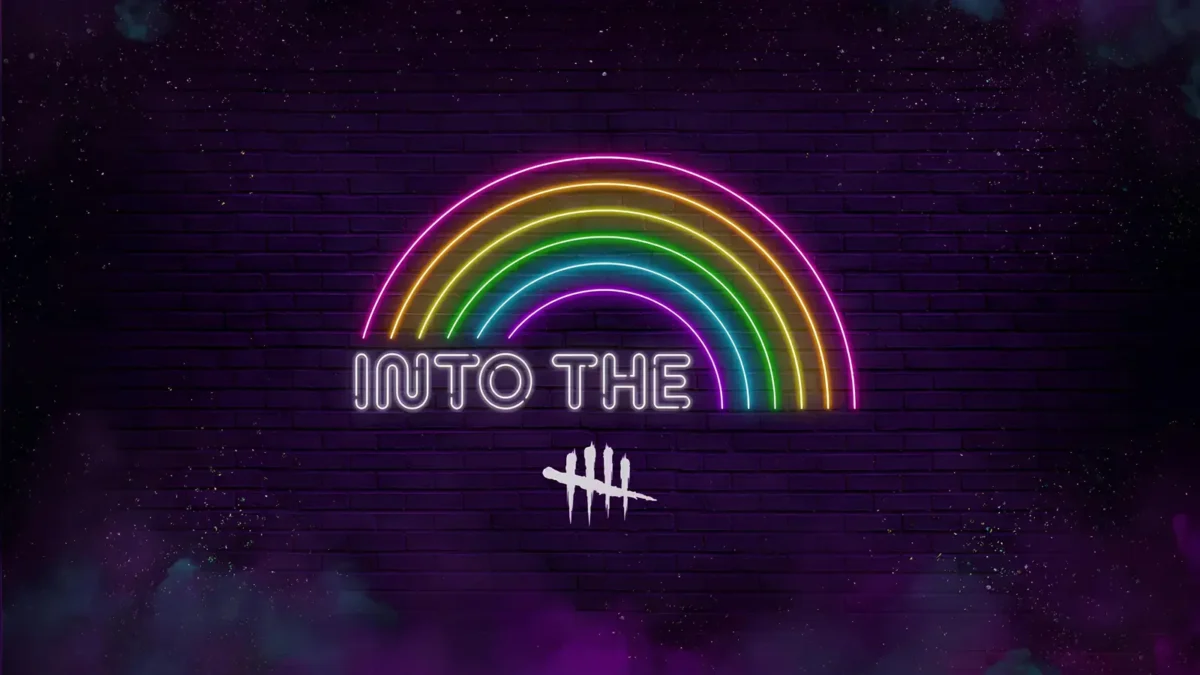
Dead by Daylight’s Into the Rainbow event brings another limited set of rewards to Twitch. However, the in-game item and the Twitch profile badge do not unlock in the same way.
Players must also connect the correct accounts before their progress can transfer into the game. Here is how the current campaign works, when it ends, and what to check when a claimed reward does not appear.
How to Get the Dead by Daylight Twitch Drops
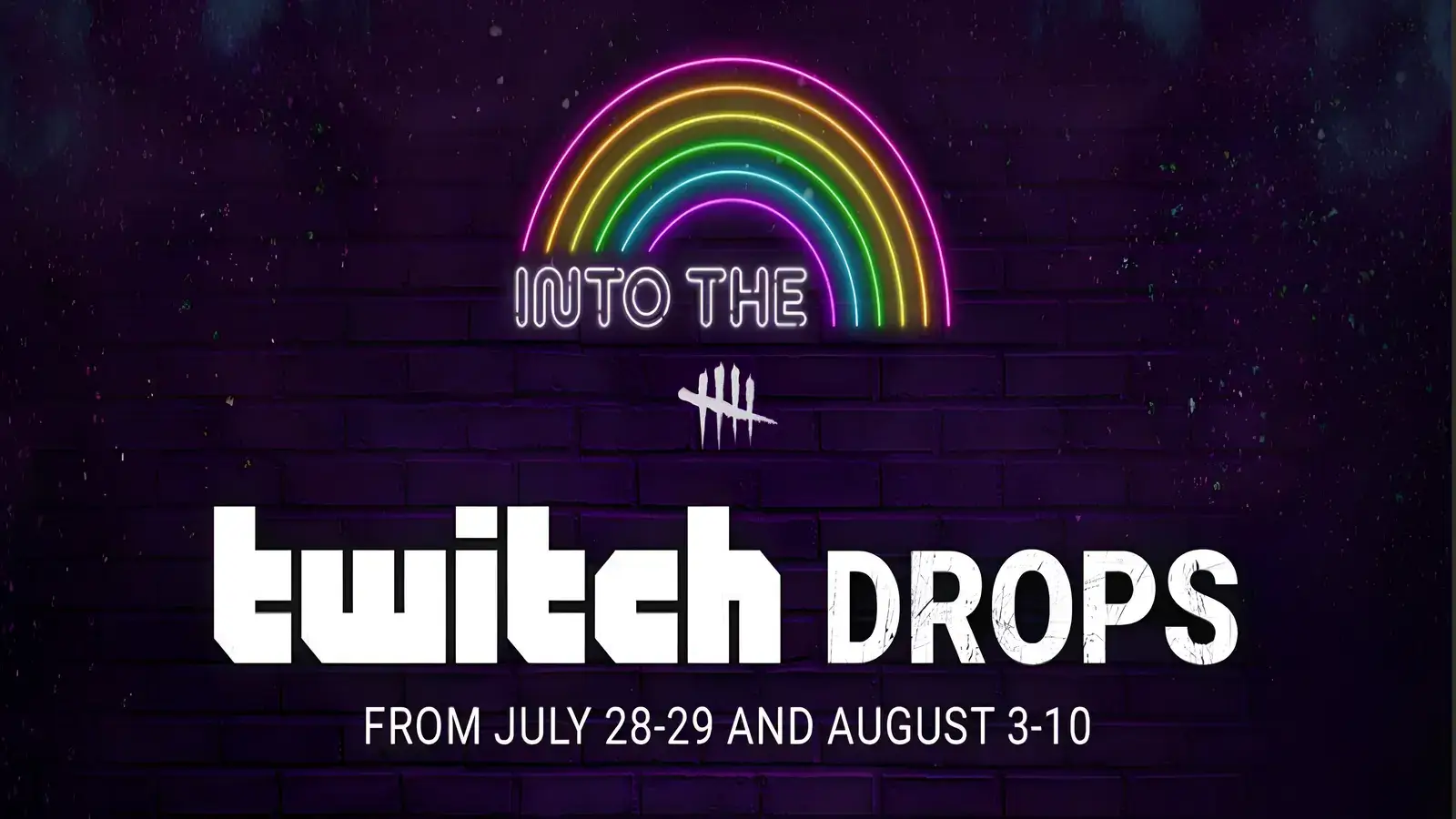
Link your Twitch and Behaviour accounts, then watch two hours of an eligible Dead by Daylight stream to unlock the Proud David Banner.
The Into the Rainbow 2026 campaign runs from July 28 through August 10. You can earn watch-time progress through any channel streaming Dead by Daylight with the Drops Enabled label.
Follow these steps:
- Sign in to your Behaviour Account.
- Connect your Twitch account.
- Link the platform where you play Dead by Daylight.
- Open the Dead by Daylight directory on Twitch.
- Select a stream marked Drops Enabled.
- Watch for two hours.
- Claim the Proud David Banner from your Twitch Drops Inventory.
- Restart Dead by Daylight if the banner does not appear immediately.
Watch time can carry between eligible channels. Therefore, you do not need to spend the entire two hours watching one streamer.
However, Twitch only records progress from one participating stream at a time. Opening several eligible channels will not multiply your watch time.
Dead by Daylight into the Rainbow Rewards
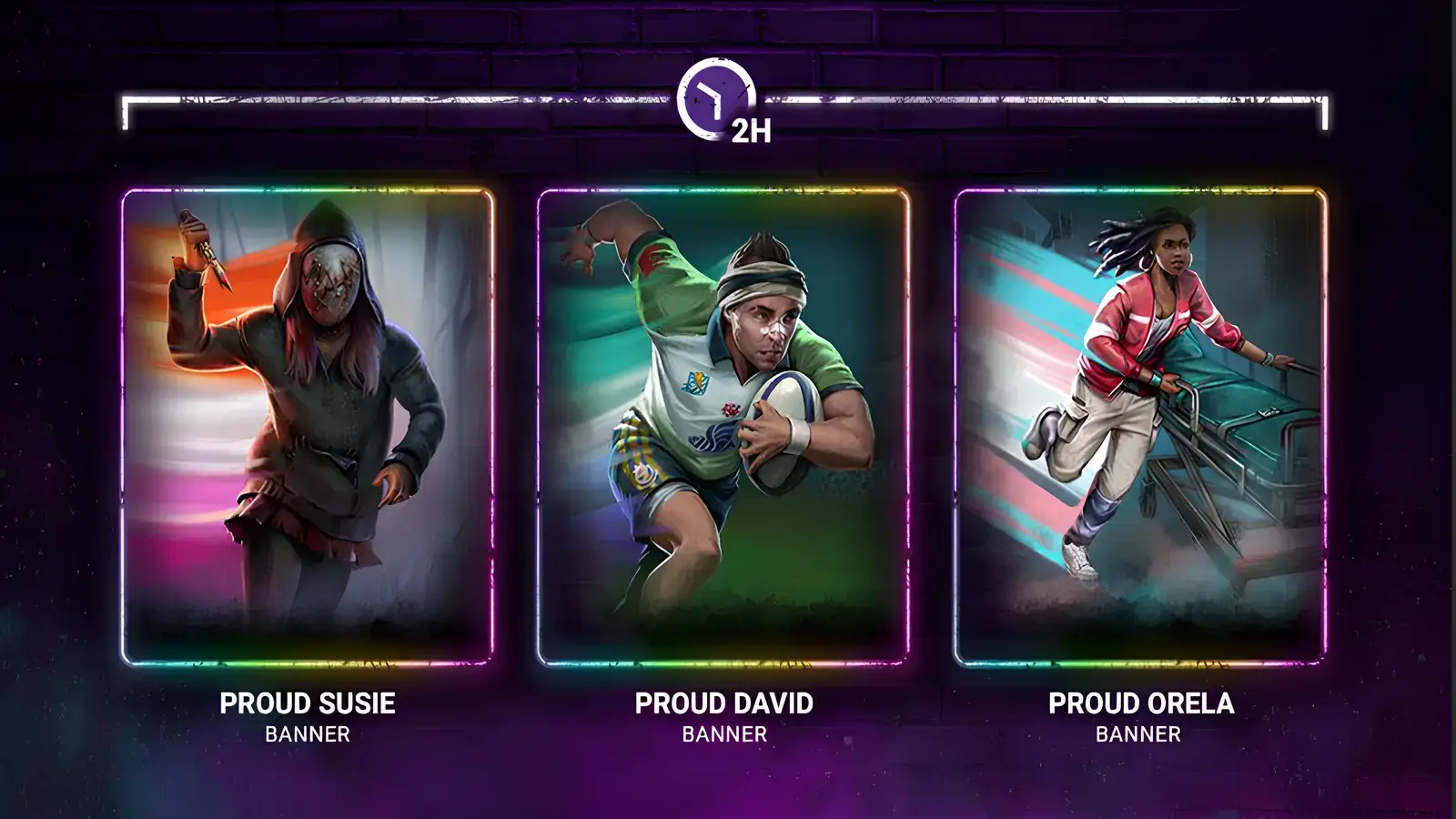
The current Twitch campaign lists two rewards, although only one is an in-game item.
Proud David Banner
The Proud David Banner is a Very Rare player profile banner from the Pride Collection.
Watch an eligible Dead by Daylight stream for two hours to unlock it. Once claimed, the banner should appear among the profile customization options in Dead by Daylight.
Dead by Daylight Pride Icon
The DbD Pride Icon is a Twitch chat badge rather than an in-game Dead by Daylight reward.
To unlock it, purchase one eligible Tier 1 subscription or gift one subscription through a participating Dead by Daylight channel during the event. Twitch Prime subscriptions do not count toward this campaign requirement.
The Pride Icon appears beside your username in Twitch chat after it has been unlocked. It does not appear in Dead by Daylight’s player profile menu.
Because the banner and Twitch badge use separate campaigns, watching for two hours will not unlock the Pride Icon. Likewise, purchasing a subscription does not replace the watch-time requirement for the Proud David Banner.
Are the Proud Orela and Proud Susie Banners Available?
The Dead by Daylight Wiki currently lists Proud David, Proud Orela, and Proud Susie as Into the Rainbow 2026 Twitch Drop banners. Each is associated with a two-hour watch requirement during the July 28 to August 10 event window.
However, the current Twitch campaign listing we could verify only names the Proud David Banner. Proud Orela and Proud Susie may be attached to later creator campaigns, rotating event streams, or listings that have not yet gone live.
Check the active campaign details in your Twitch Drops Inventory before watching. The reward image and name shown there determine which banner your current progress will unlock.
Do not assume that earning Proud David will automatically grant the other two banners.
How to Claim the Into the Rainbow Twitch Drop
Earning the required watch time does not always claim the banner automatically.
Open Twitch’s Drops and Rewards Inventory after the progress bar reaches 100 percent. Select Claim Now, then launch or restart Dead by Daylight.
The campaign ends on August 10, so complete the requirement and claim the banner before the listing disappears.
What to Do if the DBD Twitch Drop Is Missing
Start by confirming that Twitch shows the reward as claimed. A completed progress bar is not enough if the Claim button has not been selected.
Next, sign in to your Behaviour Account and open the Dead by Daylight section of the Game Library. Select Twitch Drops and use Retry Claim on any reward that has not transferred correctly. Behaviour recommends this step for claimed items that fail to appear in-game.
You should also check that:
- Twitch is connected to the correct Behaviour Account.
- Your gaming platform is linked to that same account.
- The campaign was active while you watched.
- The stream displayed the Drops Enabled label.
- You claimed the item through Twitch.
- Dead by Daylight was restarted after the claim.
The Proud David Banner should become available once the accounts are linked and the transfer finishes. The separate Pride Icon will only appear on Twitch because it is a chat badge, not a Dead by Daylight profile reward.