


Halo: Campaign Evolved is demanding enough to expose the Steam Deck’s limitations. The game can look soft on the handheld, especially during larger environments, but it remains a workable way to play through the campaign.
After testing several performance options, I found a setup that kept gameplay consistent without causing obvious stuttering or major frame-rate drops. The settings below cover both SteamOS and the in-game graphics menu, along with the battery life I recorded during testing.
Halo: Campaign Evolved Steam Deck Performance
With these settings, I maintained a consistent 30 FPS without any major performance issues. Combat remained responsive, and I did not encounter disruptive stuttering during normal campaign play.
Halo: Campaign Evolved is not one of the best-looking games on Steam Deck. The lower resolution scale makes the image appear blurry in places, while smaller text and distant details can be harder to see.
Still, it is serviceable. Players who primarily care about completing missions, collecting Skulls, or continuing the campaign away from their main system should have no trouble playing it.
Best SteamOS Performance Settings
Open the Steam Deck’s Quick Access menu, select the Performance tab, and use these settings:
- Frame Limit: 30 FPS
- Refresh Rate: 90 Hz
- Half Rate Shading: Off
- TDP Limit: Off
- Manual GPU Clock: Disabled
- Scaling Filter: Linear
These settings were tested using the Steam Deck OLED’s 90 Hz display. Setting the game to 30 FPS at 90 Hz produces consistent frame pacing because each game frame is displayed across three refresh cycles.
Steam Deck LCD owners should use a 30 FPS limit with the screen set to 60 Hz instead. The original model does not support a 90 Hz refresh rate.
I did not set a manual TDP limit or GPU clock. Leaving both controls unrestricted gave the game enough room to maintain its 30 FPS target during larger combat encounters.
Best In-Game Graphics Settings
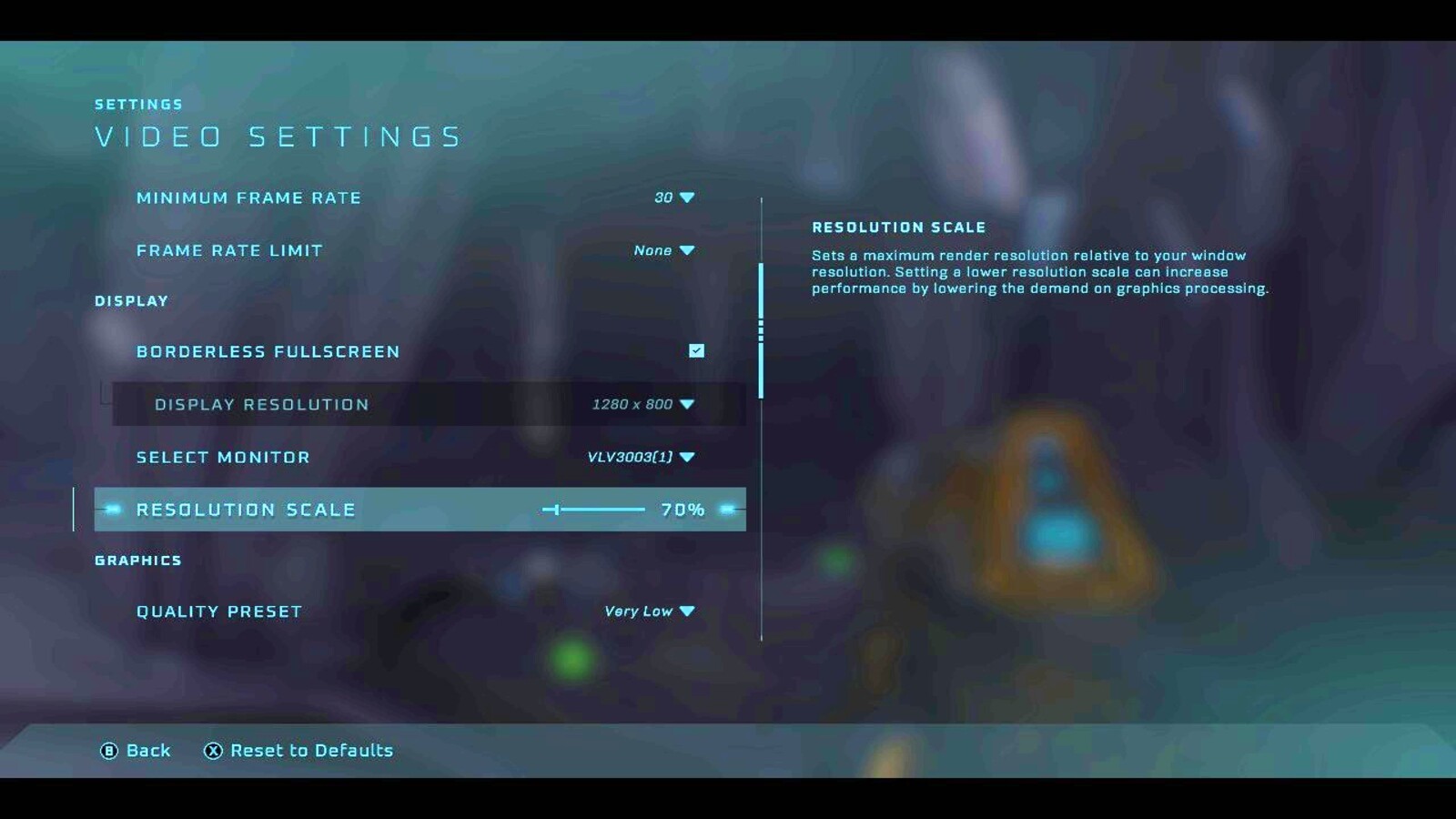
Leave the standard graphics options at their default values. The only setting that needs to be changed is:
- Resolution Scale: 70%
A 70% resolution scale provides the performance headroom needed to hold 30 FPS. The tradeoff is a noticeably softer image, especially when viewing distant enemies or detailed environments.
Increasing the resolution scale may improve clarity, but it can also introduce frame-rate drops. Since Halo: Campaign Evolved is already fairly demanding on the Steam Deck, the sharper image was not worth losing the stable performance target.
Halo: Campaign Evolved Steam Deck Battery Life
This setup provided approximately two and a half hours of gameplay on a full battery during testing.
Battery life will vary based on your Steam Deck model, screen brightness, volume, wireless settings, and the mission being played. The Steam Deck OLED may also last longer than the LCD model under similar conditions.
Reducing brightness can extend the session slightly. However, adding an aggressive TDP limit risks creating frame-rate drops that are more distracting than the extra battery time is worth.
A stable 30 FPS remains the best balance for Halo: Campaign Evolved on Steam Deck. The game will not look as clean as it does on more powerful hardware, but these settings make the full campaign comfortably playable.