Roblox normally keeps itself current on PC, but updates can occasionally get stuck or leave you with an outdated version. The process can also be confusing because Windows players can use either Roblox – Windows from the Microsoft Store or Roblox Player installed through the Roblox website.
The two versions use different update and troubleshooting methods. Here is how to identify yours, update it, and fix it if Roblox still refuses to work.
How to Update Roblox – Windows from the Microsoft Store
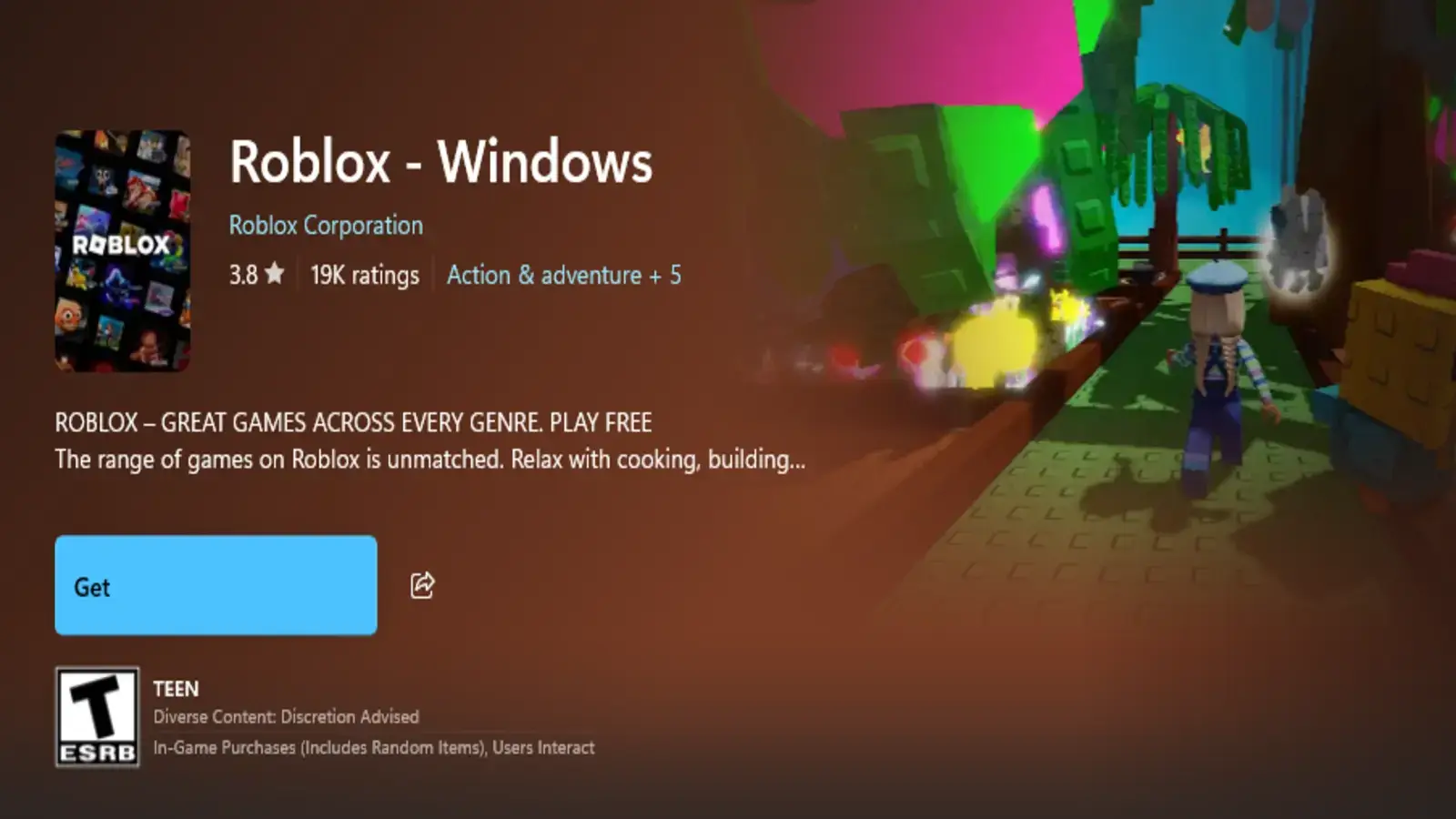
If you installed Roblox through the Microsoft Store, you can check for updates directly through the Store’s Downloads page.
- Open the Microsoft Store.
- Select Downloads in the lower-left corner.
- Select Check for updates.
- If an update for Roblox – Windows appears, allow it to download and install.
- Launch Roblox after the update finishes.
Microsoft Store apps can also update automatically if enabled in your profile settings, so Roblox may not appear in Downloads if you already have the current version.
What to Do if Roblox – Windows Won’t Update
If checking for Store updates does not solve the problem, Windows provides several built-in troubleshooting options.
- Open Windows Settings.
- Select Apps.
- Open Installed apps.
- Find Roblox – Windows.
- Click the three dots on the right.
- Select Advanced options.
- Scroll down to the troubleshooting section.
Try the available options in this order:
- Terminate: Completely closes Roblox and its related processes. Try this if the app is frozen or stuck running in the background.
- Repair: Attempts to fix Roblox without deleting its stored app data. Start here for most problems.
- Reset: Deletes Roblox – Windows app data and returns the application to its default state. Try this if Repair does not work.
- Uninstall: Removes Roblox – Windows completely. Reinstall it through the Microsoft Store afterward if the other options fail.
You should not need to manually remove Roblox folders when troubleshooting the Microsoft Store version. Windows manages the installation through these options.
How to Update Roblox Player from the Website
If you installed Roblox through Roblox.com, you are using the website version of Roblox Player.
You can install the newest version by visiting the official Roblox download page and running the installer.
You can also install or launch Roblox by signing into Roblox.com, opening an experience, and selecting the green Play button.
If Roblox Player reports that your version is outdated or does not update correctly, reinstalling it will install a fresh copy of the current Player.
What to Do if Roblox Player Won’t Update
If a normal reinstall does not solve the problem, perform a clean reinstall by removing the locally stored Roblox files.
- Uninstall Roblox Player from Windows.
- Press Win + R.
- Enter
%localappdata%and press Enter. - Find the Roblox folder.
- Delete the entire Roblox folder.
- Restart your PC.
- Reinstall the Roblox Player.
This removes Roblox files that can remain behind after a normal uninstall and gives the Player a completely fresh installation.
How to Fix Roblox Error Code 280 on PC
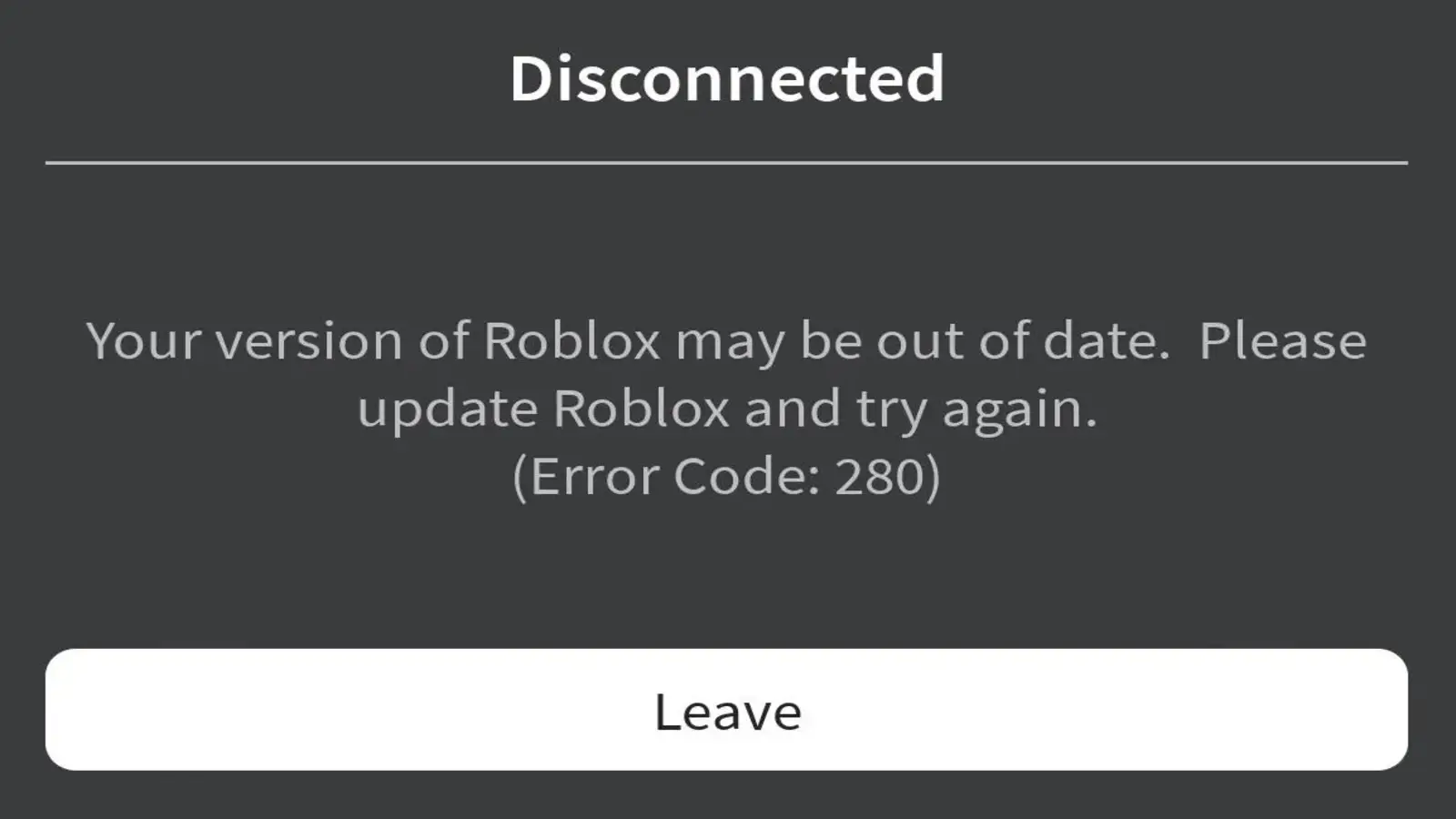
Roblox Error Code 280 can appear when the version running on your PC is outdated or has a problem.
You do not need a separate set of troubleshooting steps for this error. Use the method that matches your installation:
- Roblox – Windows: Check the Microsoft Store for updates, then try Repair, Reset, or reinstalling the app if necessary.
- Roblox Player: Reinstall the Player. If that fails, perform the clean reinstall using the
%localappdata%\Robloxfolder steps above.
After completing the steps for your version of Roblox, launch the game again to see if the update issue has been fixed.