
The Fallout 4 Console Creations Storage Increase is great news for console mod fans. Bethesda plans a December 2025 update that boosts Creations storage on Xbox and PlayStation. You get more room for weapon packs, quest mods, and visual upgrades.
There is a catch. That update can reset or reorder your console load order. It might break saves, crash your game, or quietly turn off key mods. Bethesda warns console players to save their load order before the patch. This guide shows you what changes and how to lock in your setup.
Fallout 4 Console Creations Storage Increase Explained
Consoles keep Creations and mods in a capped local storage space. Right now that space feels tiny, especially if you run big quest packs or overhauls. Bethesda plans the Fallout 4 Console Creations Storage Increase to fix that limit. With the update, console players can install and run many more Creations at once.
Xbox Series X and Series S players see the biggest boost first. On those systems, the Creations local storage limit can grow to 100 GB. That jump is a huge leap over the old cap. The studio also plans similar improvements for PlayStation, with details coming in later patches.
Bethesda will roll out these changes in a set of November and December 2025 updates. These patches tie into the Fallout 4 Anniversary Edition and ongoing hotfixes. That is why the Fallout 4 Console Creations Storage Increase comes with extra warnings for console mod users.
Why You Need to Save Tour Console Load Order
When Bethesda updates how Creations storage works, the change can affect your mod data on console. It can shuffle your load order or disable some entries. In some cases the game relies on save data instead of your preferred setup.
To prevent that, Bethesda tells players to save their console load order to Bethesda.net before the update. This step creates a server backup of your current order. If the December patch scrambles your list, you have a clean setup to copy.
How to Save Your Fallout 4 Console Load Order
Here’s how to save your Fallout 4 console load order on Xbox or PlayStation before the Fallout 4 Console Creations Storage Increase update arrives:
- From the main menu, open the Creations menu.
- Wait for the Creations screen to load all thumbnails and owned content.
- At the bottom of the screen, select the Load Order option.
- On the Load Order screen, choose Load Order Archive.
- Pick Save Load Order to Bethesda.net.
- Confirm that you want to save your current load order.
- Wait for the success message about your saved load order.
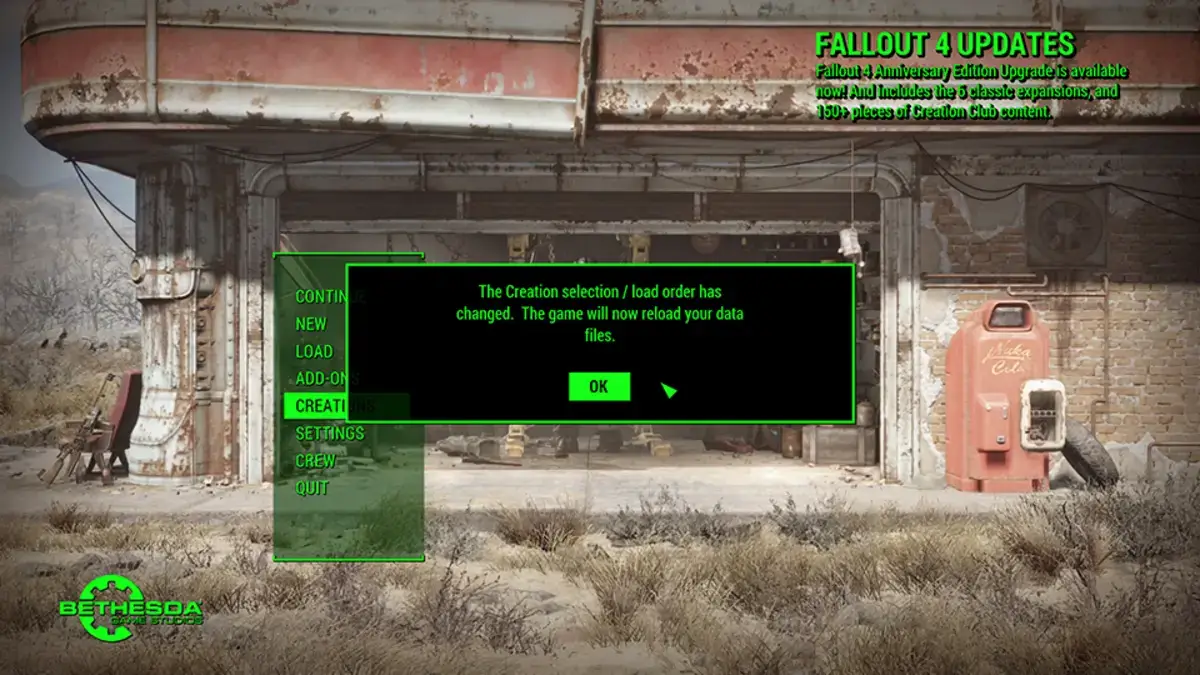
- Exit the menus and let Fallout 4 reload your data files.
- That message means you completed the process.
After the Fallout 4 Console Creations Storage Increase patch goes live, check your load order. If anything looks wrong, reopen the Load Order Archive. Use your saved setup on Bethesda.net as a reference and rebuild the correct order. That step should bring your modded game back to a stable state.
Rejoice for More Space!
The Fallout 4 Console Creations Storage Increase gives console players more room than ever for mods. Spend a few minutes on prep now, and you can avoid most post-patch headaches. Check our Fallout 4 hub after the update for more Fallout 4 load order tips. We will also share recommended Creations to fill that new space.